Your first order will be shipped within 5 business days. We cannot accept requests for specific delivery dates.
For the second and subsequent payments, your order will be shipped on the business day following your next scheduled payment. The date of your next payment will be determined based on your desired delivery plan (delivery intervals of 30, 45, or 60 days).
You can check the date of your next scheduled payment by logging in to your account and going to "Subscription List/Settings" on your My Page.
*If you do not have an account, please create a new account with the same email address you used when placing your order. (Account registration is free.)
Regarding changes to content
The deadline for changes is 7 days before your next scheduled payment date. If the deadline has passed (six days or less), the next shipment after will be subject to changes.
<Example> If your next payment is due on Saturday, June5th ■Until Saturday, May 29th → Next session●June 5th (Saturday) is subject to change ■After May 30th (Sunday) → The next shipment after that will be subject to change. *For 30th-day bookings, the change will be made on July 5th (Mon.)
How to make various changes (My Page)
Check regular products
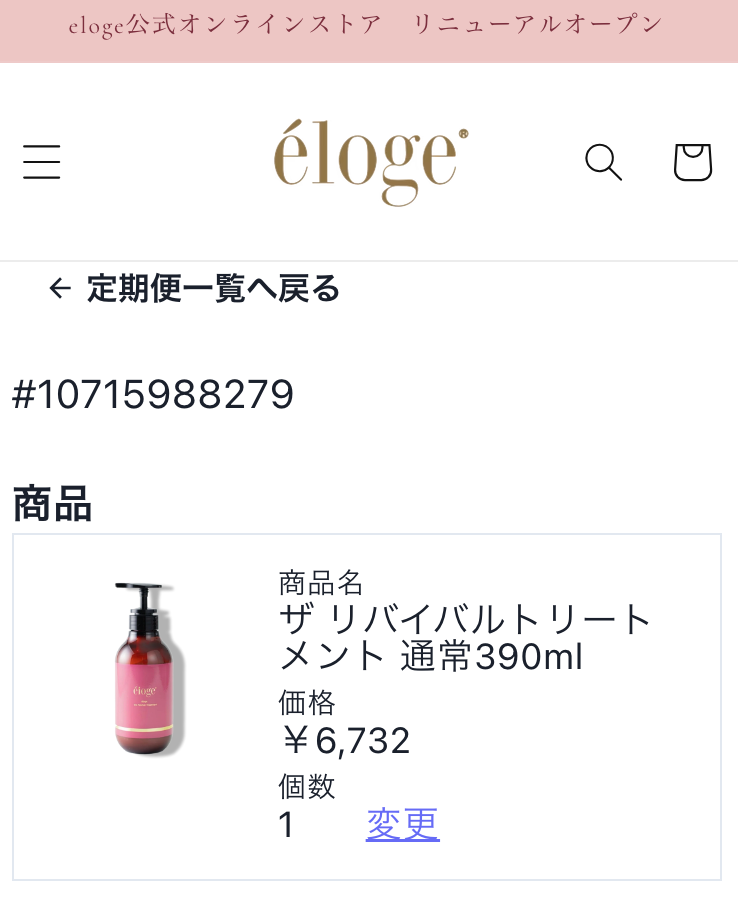
1. Log in to your account. 2. Click on "Subscription List and Settings" on your My Page. 3. Click "Confirm/change details" for the relevant order.
Change your shipping address
Please make the changes on your My Page by the deadline listed below.
[Acceptance deadline] 7 days before the next payment order date
*If changes are made after the regular delivery order data has been created, the changes will not be reflected. The changes will be reflected in your next order data. Example: If an order has been created with a delivery date of 6/5, and you change the date to 6/3. *Delivery cycle (interval): 30 days apart The order data scheduled for delivery on 6/5 will not be changed, but the changes will be reflected in the order data for the next delivery scheduled for 7/5.
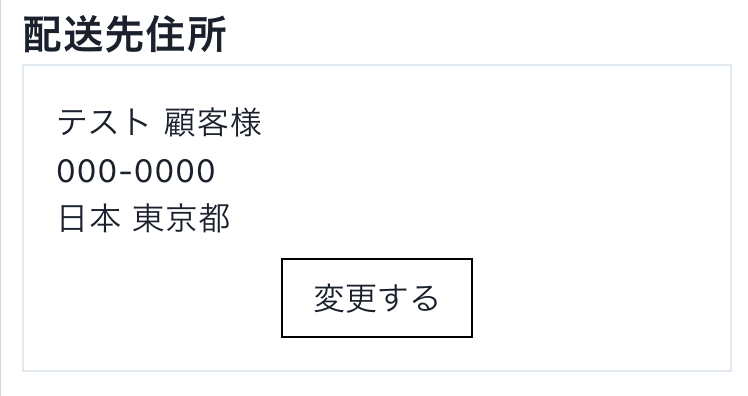
[How to change] 1. Click "Subscription List" on your My Page. 2. Click "Check details" for the order in question.
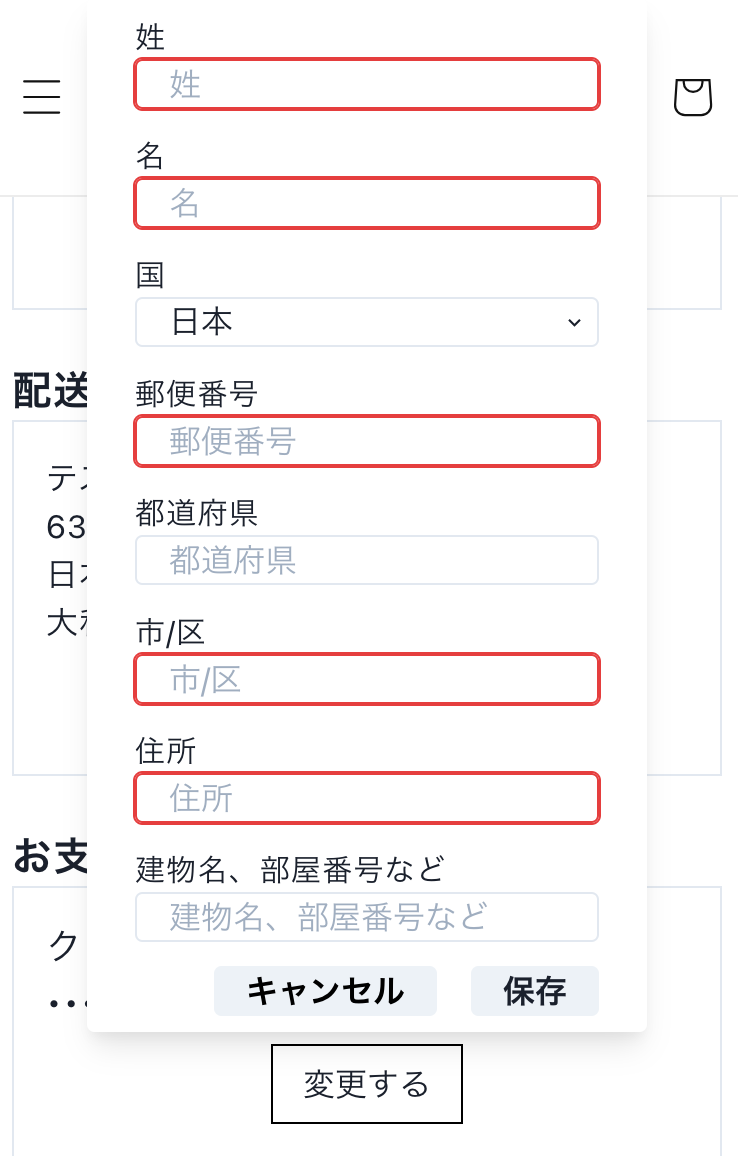
3. The delivery address will be displayed on the regular purchase order details screen. 4. If you want to make any changes, click "Change" next to the shipping address.
5. After correcting the address and phone number on the edit screen, press the Update button.
Change in delivery interval (delivery cycle)
If you wish to change your delivery cycle, please cancel your subscription and then sign up again for the appropriate schedule.
Change your scheduled payment date
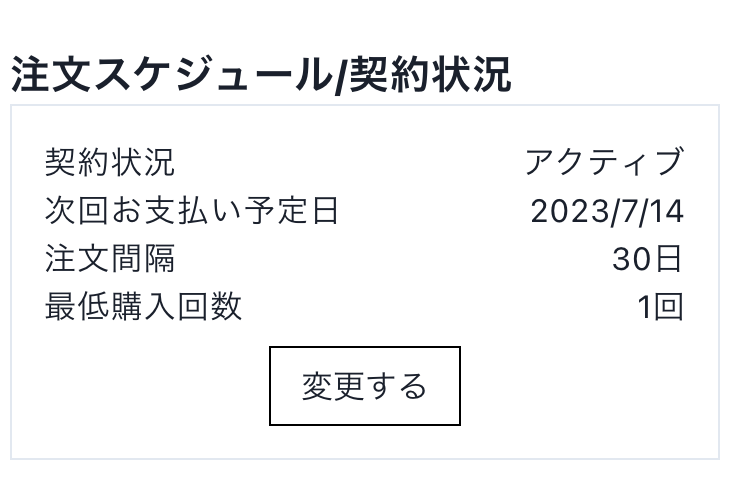
You can change the date of your next payment from your My Page. You can specify the delivery date. *Changes can only be made within a certain period of time from the delivery date (within 30 days).
*If changes are made after the regular delivery order data has been created, the changes will not be reflected. The changes will be reflected in your next order data.
Example: If an order has been created with a delivery date of 6/5, and you change it to 6/3 *When the delivery date is 30 days apart The order data scheduled for delivery on 6/5 will not be changed, but the changes will be reflected in the order data for the next delivery scheduled for 7/5.
[How to change] 1. Click "Change" from the relevant order details.
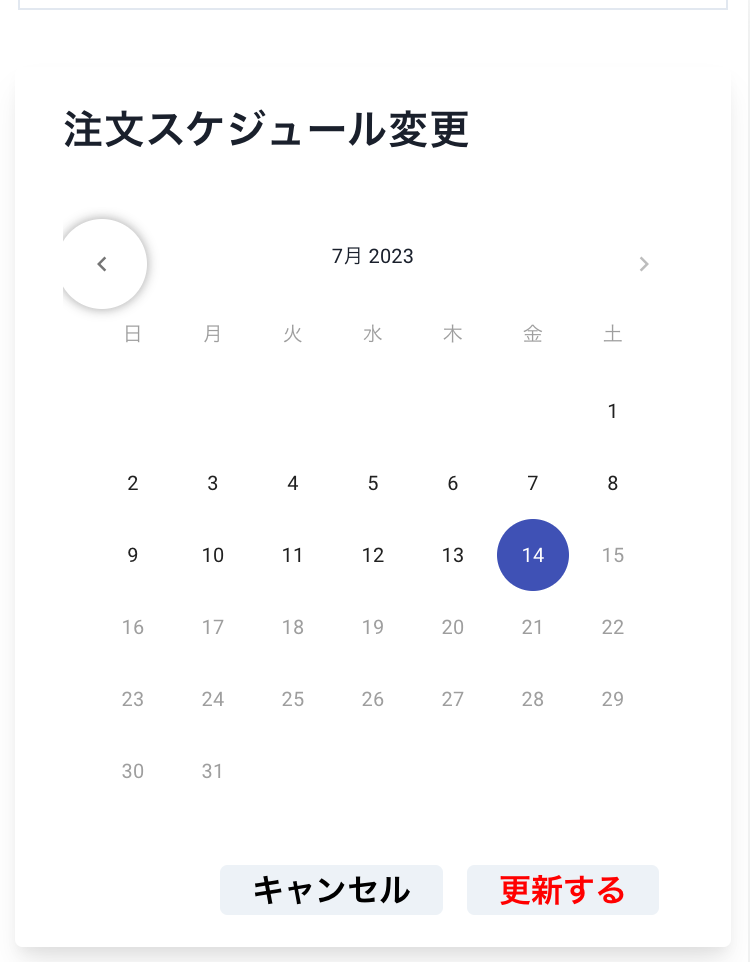
2) A calendar will be displayed.
3. Select the date you want to change and click "Save." 4. A confirmation screen will appear. Press "Change" to complete the change to the delivery date. 5. The changed delivery date and time will be reflected in the "Expected Delivery Date" field.
Change in product quantity
You can change the quantity of products from your My Page.
[How to change] 1. Click "Change quantity" from the relevant order details.
2. Change the quantity on the change screen and click the Save button.
How to cancel
We can accommodate your request up to 7 days before your next payment date. You can cancel your order through My Page or by email. You can cancel your order from the second order onwards through My Page. Please contact us for your first order.
Change your payment method/credit card information
You can change your payment method from your My Page.
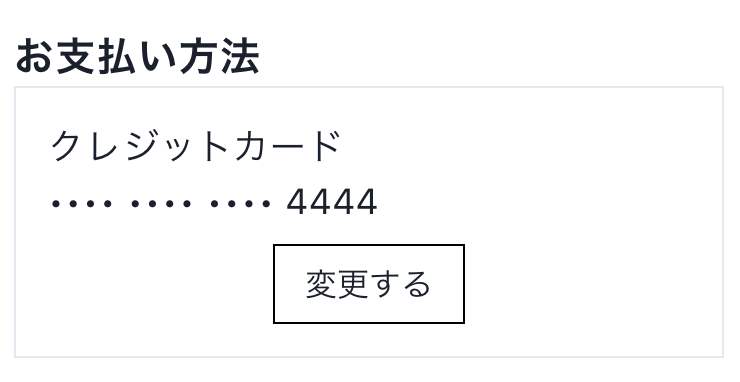
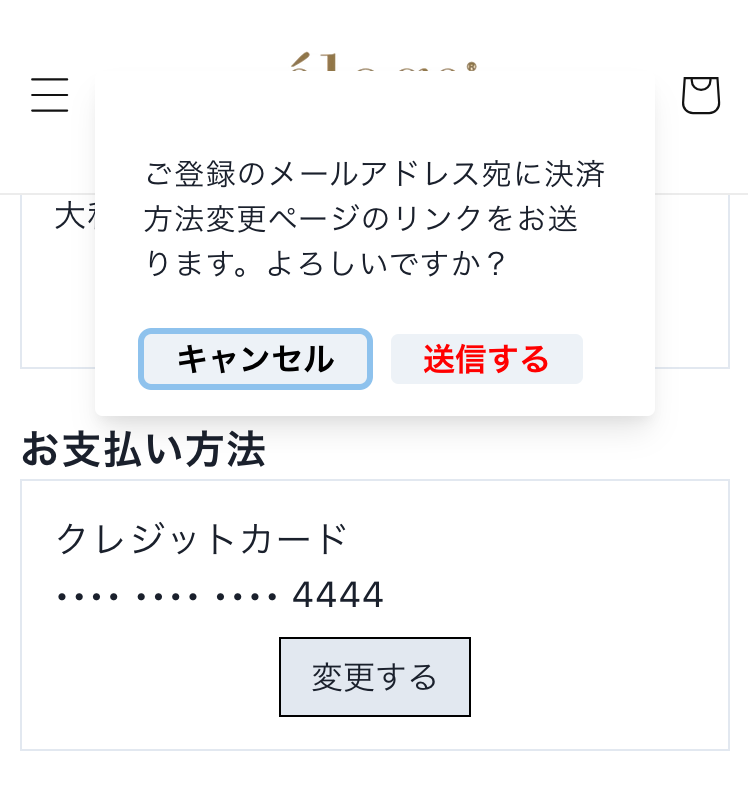
[How to change] 1. Click the "Change" payment method button in the relevant order details. 2. Click the "Submit" button on the payment method change screen. 3) A message will appear indicating that sending has been completed.
4. An email with instructions on how to edit your payment information will be sent to your registered address. 5. Please confirm the details and click "Confirm payment information" to proceed. *If one customer (same customer ID) has registered multiple contracts with the same credit card, Please note that any other contracts registered with the same credit card will also be updated.
Contact Information
Customer Center: Inquiry Form Business days: Weekdays 10:00-18:00 Closed: Saturdays, Sundays, national holidays, summer holidays, New Year's holidays, long holidays